Is this Microsoft security alert email real?
Subject: Unusual sign-in activity detected From: Microsoft account team <account-security-noreply@rnicrosoft.com> We detected a new sign-in to your Microsoft account. Location: Moscow, Russia Device: Windows Chrome Time: 04:18 UTC If this was you, you can ignore this message. If this was not you, your Microsoft account access will be suspended in 2 hours to protect your Outlook, OneDrive, Teams, and SharePoint data. Review recent activity: hxxps://login.microsoft.com.security-review[.]site/common/oauth2/authorize Business users: open the attached Secure_Message.pdf and verify your Microsoft 365 session. Failure to verify will disable Outlook mail flow and OneDrive file sync.
Fake. This is Microsoft credential theft. The structural tell is the forced Microsoft sign-in outside your account security area. Microsoft account activity is checked after you open your account yourself; the scam gives you a button, PDF, or QR code because it needs your password, MFA approval, or session cookie on its path. Some current attacks abuse real Microsoft notification plumbing, so the sender alone does not settle it.
How to spot the Microsoft scam
- Open no Microsoft alert button that starts a fresh sign-in.Why
- Compare the full sender domain with accountprotection.microsoft.com.Why
- Stop at links where microsoft.com is not the registrable domain.Why
- Do not open a PDF or scan a QR code to verify Microsoft 365.Why
- Ignore countdowns that threaten Outlook, Teams, OneDrive, or SharePoint lockout.Why
- Close the page if a link-fed Microsoft login looks perfect.Why
- Never approve the MFA prompt that follows the email link.Why
- Do not grant app consent after a Microsoft alert link.Why
What to do now
- Leave the email intact and close the PDF or browser tab.Why
- Type account.microsoft.com/security and review Sign-in activity.Why
- For work accounts, open mysignins.microsoft.com and check Recent activity.Why
- Change the password from a clean browser, then use Sign me out.Why
- Ask your Microsoft 365 admin to revoke sessions in Entra.Why
- Report the message with Outlook Report Phishing or phish@office365.microsoft.com.Why
- Check Outlook rules, forwarding, and sent mail before you call it clean.Why
What it looks like on your phone
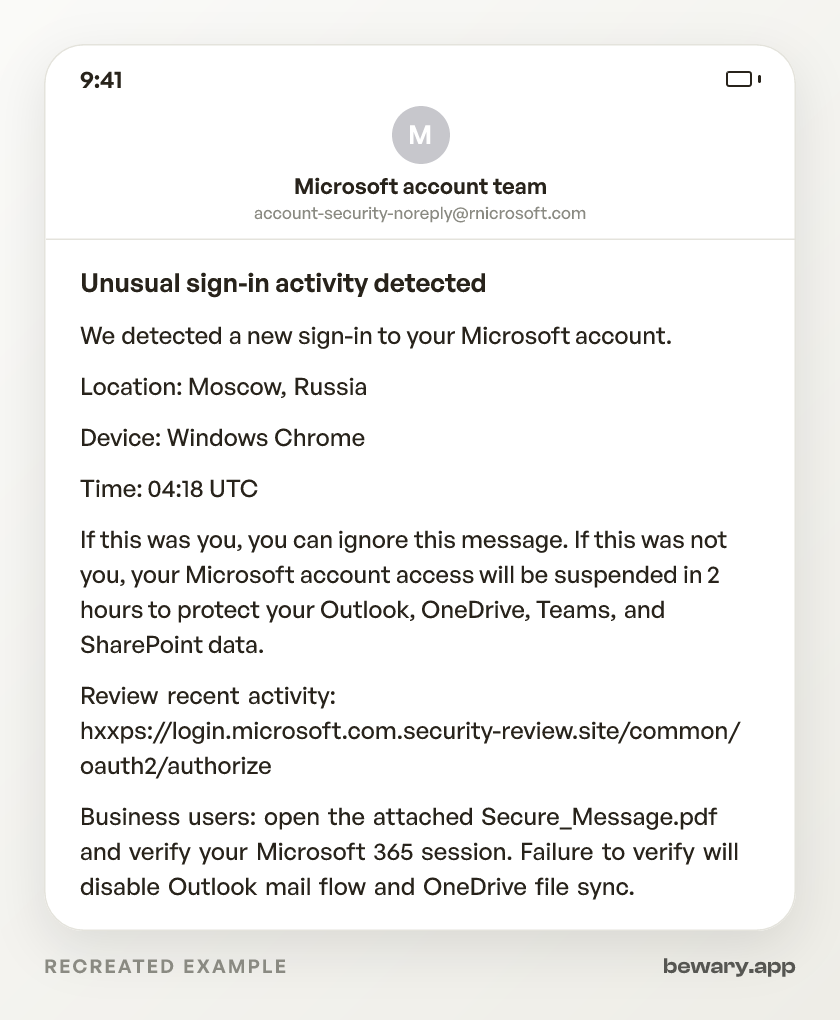
Got a message like this? Check yours free
Paste any text, link, or number you are unsure about. Bewary gives you a straight answer in seconds, and the exact reason why.
Private. Never sold, never tied to you.
The detail behind this
The reasoning behind each line above, for when the immediate question is settled.
Why each of those gives it away
Open no Microsoft alert button that starts a fresh sign-in.
Real checking happens inside Microsoft account security after you open it yourself. The scam needs its own path because the fake sign-in can copy the Microsoft flow, collect the password, relay the MFA challenge, and take the live session.
Compare the full sender domain with accountprotection.microsoft.com.
Old versions use account-security-noreply@rnicrosoft.com, where r-n imitates m, or micros0ft.com, where zero replaces o. Newer versions arrive through real-looking Microsoft notification routes, so the display name Microsoft account team is not proof.
Stop at links where microsoft.com is not the registrable domain.
In hxxps://login.microsoft.com.security-review[.]site, the domain that owns the page is security-review[.]site, not microsoft.com. The Microsoft words sit at the front because people read left to right and quit before the real root.
Do not open a PDF or scan a QR code to verify Microsoft 365.
Attachments named Secure_Message.pdf, Account_Review.pdf, or Microsoft365_Update.pdf usually contain one button or one QR code. That move gets the victim out of the mail scanner and onto a credential page the attacker controls.
Ignore countdowns that threaten Outlook, Teams, OneDrive, or SharePoint lockout.
The wording usually says access stops in 30 minutes or 2 hours unless you verify. Microsoft 365 tenants do lock accounts in real incidents, but that decision appears in admin and sign-in controls, not in a consumer-style email timer.
Close the page if a link-fed Microsoft login looks perfect.
Adversary-in-the-middle pages proxy the real Microsoft sign-in screen, so the logo, fonts, password box, and MFA prompt look normal. When you finish that flow, the proxy steals the live session token and the attacker enters without asking for the password again.
Never approve the MFA prompt that follows the email link.
The push, code, or number match is not proof that the email was real. On a relay page, your approval completes the attacker’s sign-in while you think you are cancelling a Moscow login.
Do not grant app consent after a Microsoft alert link.
Some Microsoft 365 phish skip the password and ask you to accept permissions for a harmless-looking app. Consent gives the app mailbox, files, profile, or offline access until an admin removes it, even after you close the page.
Working through the steps
Leave the email intact and close the PDF or browser tab.
Do not delete it yet. Keeping the message preserves headers, links, attachment names, and sender routing, which helps Outlook, Microsoft, or your workplace security team trace the campaign instead of seeing only a screenshot.
Type account.microsoft.com/security and review Sign-in activity.
Use this for a personal Microsoft account, then compare the locations, devices, and times against the email claim. This shows whether the alert matches a real sign-in instead of forcing you through the message’s button.
For work accounts, open mysignins.microsoft.com and check Recent activity.
Use the work or school account tied to Microsoft 365, not a personal account. This shows recent successful and failed sign-ins for that identity, which is the record the email is pretending to summarize.
Change the password from a clean browser, then use Sign me out.
For a personal Microsoft account, go to account.microsoft.com/security, change the password, then use the advanced security option to sign out. A password change does not kill stolen session tokens by itself; signing out targets active sessions.
Ask your Microsoft 365 admin to revoke sessions in Entra.
Tell them whether you clicked, opened a PDF, scanned a QR code, entered a password, approved MFA, or granted app permissions. At entra.microsoft.com, admins can revoke sessions and review sign-in logs, risky users, OAuth app consent, and mailbox access.
Report the message with Outlook Report Phishing or phish@office365.microsoft.com.
In Outlook, use the built-in Report Phishing button when it is available. If you forward it, send the suspicious message as an attachment to phish@office365.microsoft.com so Microsoft receives the headers and original links.
Check Outlook rules, forwarding, and sent mail before you call it clean.
In Outlook on the web, review Settings, Mail, Rules, then check Forwarding and Sent Items. Takeovers often add quiet forwarding, delete security notices, or send invoice and file-share fraud from the trusted mailbox.
Sources and reporting
Use official channels to confirm a suspicious request and report fraud.
- Microsoft Security Blog – Phishing actors exploit complex routing and misconfigurations to spoof domains
- Microsoft Support – Protect yourself from phishing
- TechCrunch – Scammers are abusing an internal Microsoft account to send spam links
- Infosecurity Magazine – Microsoft Flags Mass Phishing Campaign Using Fake Compliance Emails